Leave and search for plant-related notes in the Comments tab on the dashboard.
Estimated time: 4~5min · Last updated: 2026-03-22
How to
When you want to log inspection records, opinions, or field notes about a plant
Starting state: You are logged in to PATCH, The plant detail (dashboard) screen is open
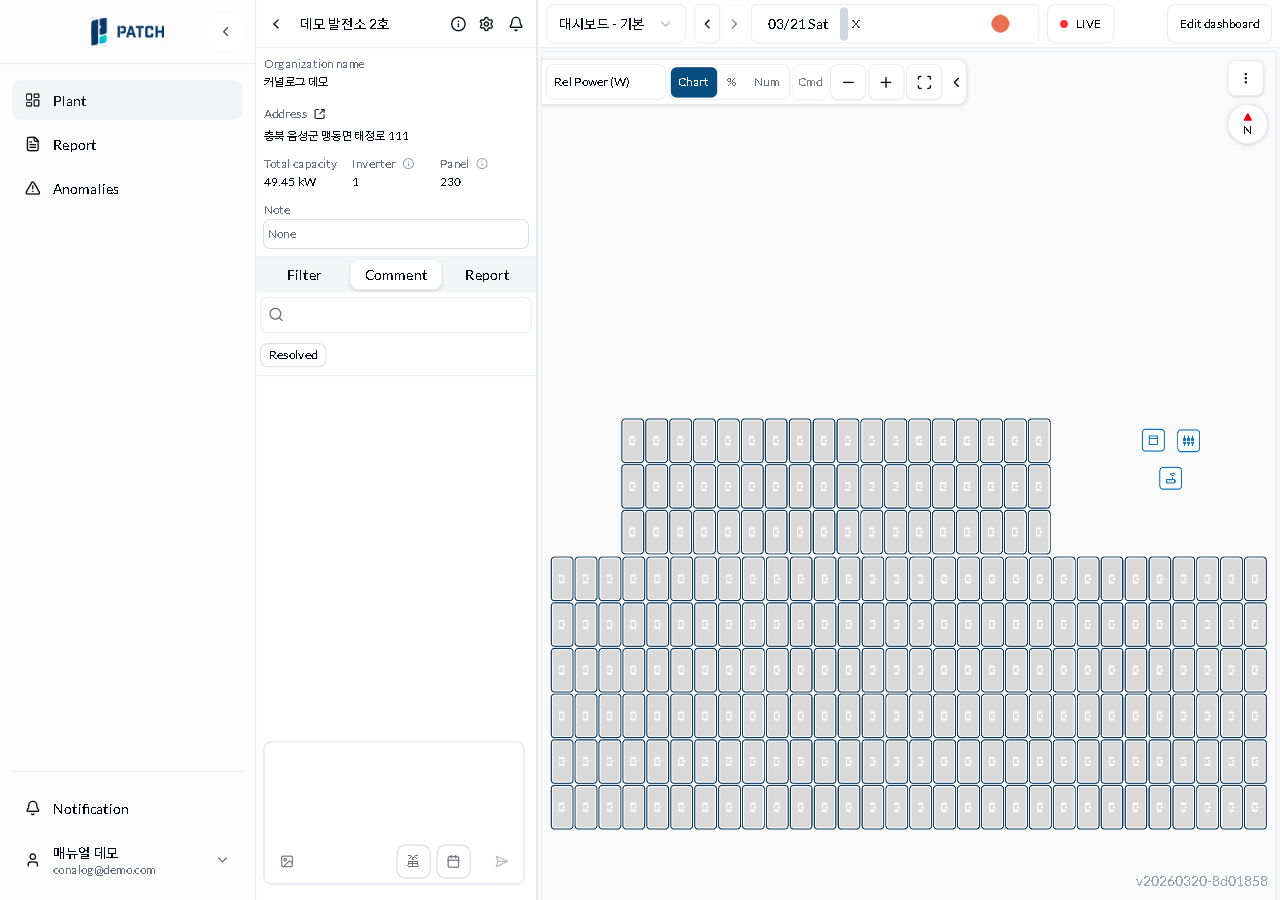
Click the Comments tab on the left side of the dashboard. The existing comment list appears.
Type a keyword in the search bar to filter comments by content. Click Completed to show only comments marked as done.
Type your comment in the input field. Click Include Panel Selection to attach the currently selected panels, and Include Time Info to attach the current dashboard timestamp. You can also attach files (images).
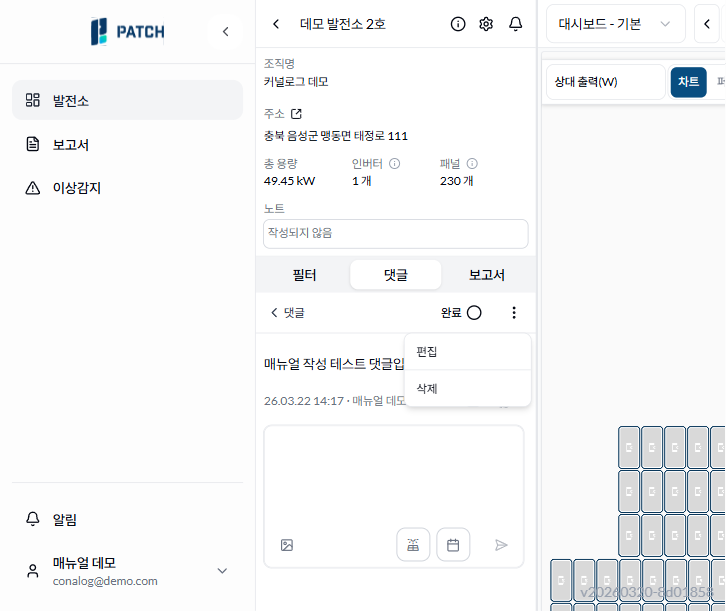
Use the ⋮ menu on a comment to edit or delete it. Mark it as resolved with the Resolved button, and add replies.
Expected result
The comment is added to the list. Use search or the Completed filter to quickly find any comment.
If it does not work
If the comment is not sent, make sure the input field is not empty and click the send button again.
If there are no search results, try a shorter keyword.
Step-by-step screenshots
Follow the red-numbered hotspots in the images below alongside the steps above.
1. Click the Comments tab on the left side of the dashboard. The existing comment list appears.
1
댓글 탭
Dashboard comments tab — search bar, completed filter, and comment input area at the bottom
Comments tab — currently selected
2. Type a keyword in the search bar to filter comments by content. Click Completed to show only comments marked as done.
2
댓글 탭
Dashboard comments tab — search bar, completed filter, and comment input area at the bottom
Search and completed filter area — keyword search and completion status filter
3. Type your comment in the input field. Click Include Panel Selection to attach the currently selected panels, and Include Time Info to attach the current dashboard timestamp. You can also attach files (images).
3
댓글 탭
Dashboard comments tab — search bar, completed filter, and comment input area at the bottom
Comment input area — text input, panel selection, time info option, and send button
4. Use the ⋮ menu on a comment to edit or delete it. Mark it as resolved with the Resolved button, and add replies.
44
댓글 상세 + ⋮ 메뉴
Comment detail view — dots menu showing edit/delete options, with complete button and back button at top
Complete button — click to mark the comment as resolved