Home > L. Field Comments > Leave field comments
How to
When you want to log on-site work or share field information with teammates
Starting state: A plant is selected in the PATCH Field app
- Tap the comment (speech bubble) icon at the upper right. The comments panel opens with the existing comment list.
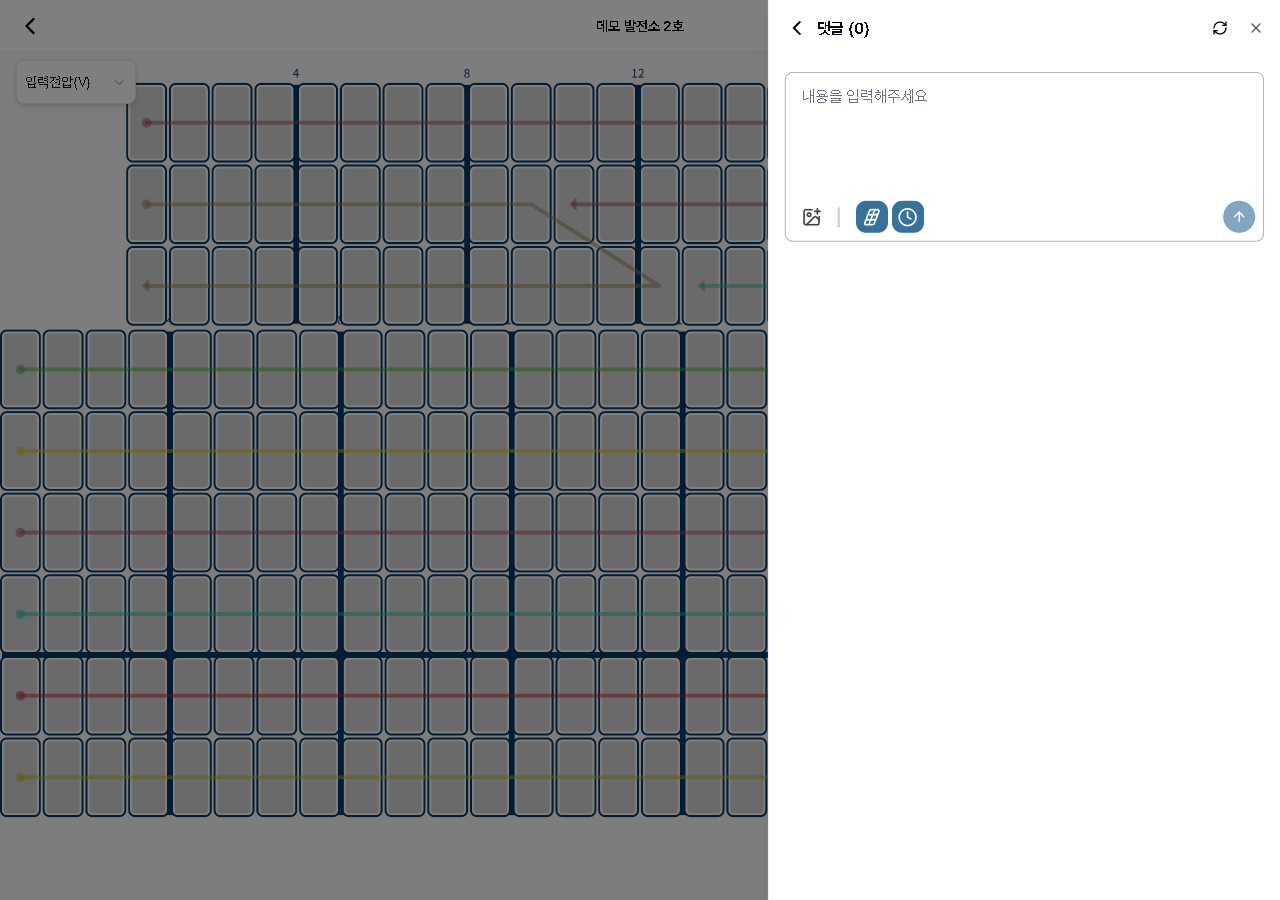
- Tap the new comment button at the bottom to write a note.
- Turn on the completed-comments checkbox to also display comments marked as done.
- {manual.fielder.comments.step4}
- {manual.fielder.comments.step5}
- {manual.fielder.comments.step6}
- {manual.fielder.comments.step7}
Expected result
The comment is posted and appears in the list. Use the completed filter to distinguish processed comments from pending ones.
If it does not work
- If the comment is not sent, check your network connection and try again.
Step-by-step screenshots
Follow the red-numbered hotspots in the images below alongside the steps above.
1. Tap the comment (speech bubble) icon at the upper right. The comments panel opens with the existing comment list.
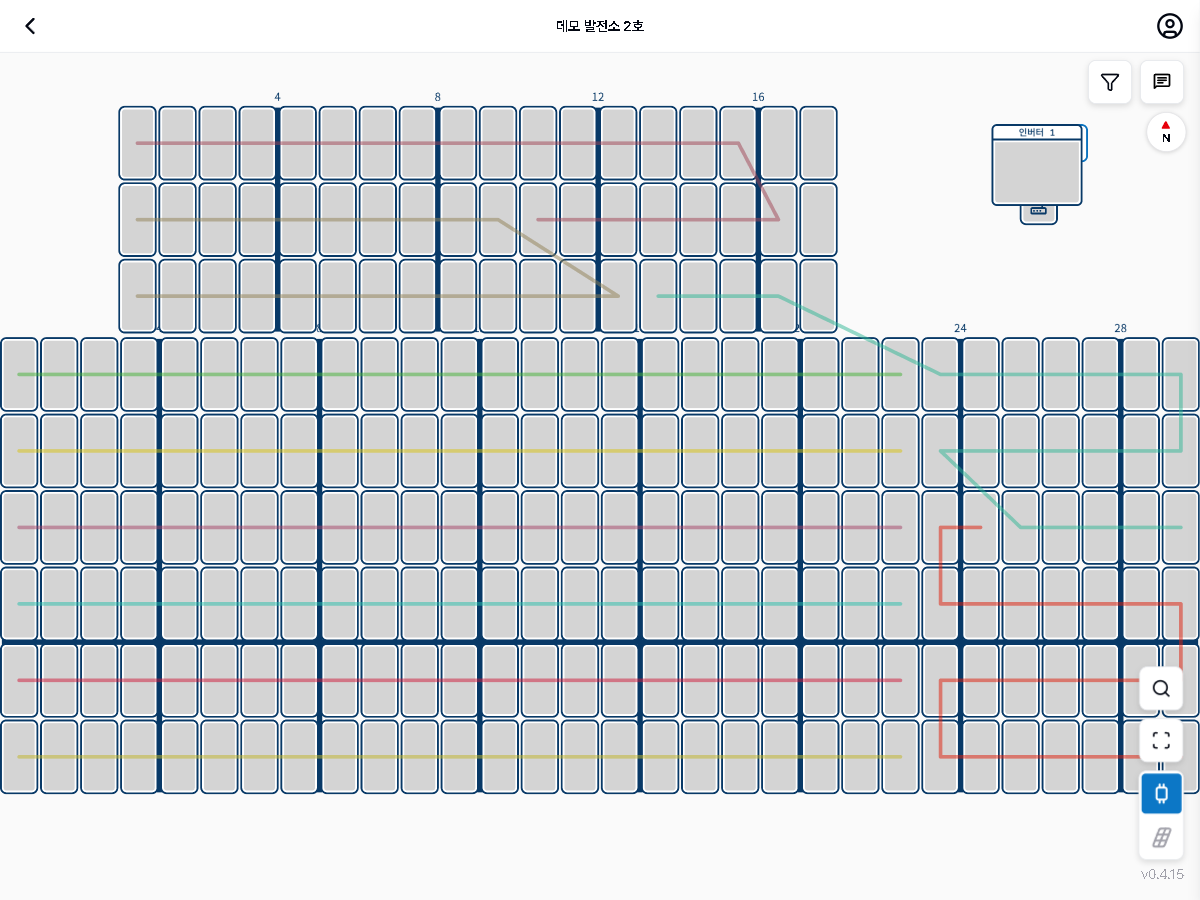
1
댓글 패널 열린 상태
Comments panel — Comments (0), completed filter checkbox, newest sort, new comment button at bottom
- Comment panel header — Comments (0) title with refresh and close buttons
2. Tap the new comment button at the bottom to write a note.
2
댓글 패널 열린 상태
Comments panel — Comments (0), completed filter checkbox, newest sort, new comment button at bottom
- Show completed comments (0) checkbox — check to also display completed comments
3. Turn on the completed-comments checkbox to also display comments marked as done.
3
댓글 패널 열린 상태
Comments panel — Comments (0), completed filter checkbox, newest sort, new comment button at bottom
- Sort button (newest/oldest) — tap to toggle sort order
4. {manual.fielder.comments.step4}
4
댓글 패널 열린 상태
Comments panel — Comments (0), completed filter checkbox, newest sort, new comment button at bottom
- New comment button — tap to open the text input area
5. {manual.fielder.comments.step5}
5
5
새 댓글 작성 화면
New comment form — text input area, toolbar with image attachment, # panel reference, clock time reference, and send button
- Comment text input area — Enter your content placeholder
- Comment toolbar — image attachment, # panel reference, clock time reference toggles
6. {manual.fielder.comments.step6}
No screenshot linked to this step yet.
7. {manual.fielder.comments.step7}
7
새 댓글 작성 화면
New comment form — text input area, toolbar with image attachment, # panel reference, clock time reference, and send button
- Send button — tap after entering content to submit the comment