Home > I. PATCH Field: Getting Started > Getting started with PATCH Field
Step-by-step guide
Getting started with PATCH Field
Open the PATCH Field app to view the layout map and filter panels by tag or inverter.
Estimated time: 7~8min · Last updated: 2026-03-22
How to
When you need to check the panel layout on-site or filter panels by inverter or tag
Starting state: You are logged in to PATCH
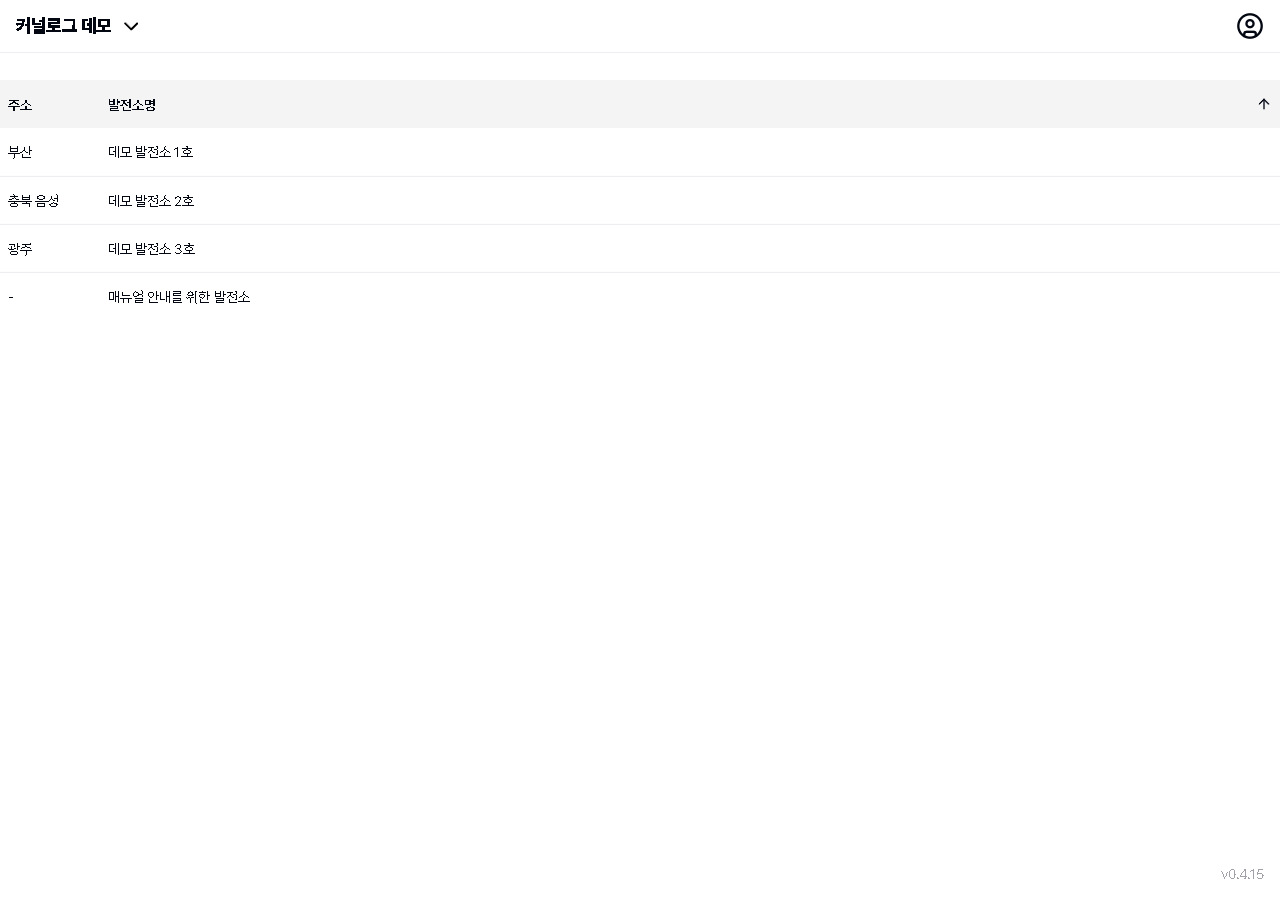
Tap the plant you want to check in the plant selection list. The layout map opens, showing the panel, string, and inverter arrangement.
Tap the filter (funnel) icon at the upper right. Tag (#GARD, #BSTR) and per-inverter filters appear so you can narrow down to the panels you need.
Tap the table view (grid) icon at the lower right. A measurement combo (Input Voltage V / Output Voltage V / Power W / Current A) appears at the upper left. Open it to select the measurement you want.
Tap the search (🔍) icon to open a camera viewfinder for scanning device S/N barcodes. You can also type the S/N in the input field below and tap Search. Tap the fullscreen (⛶) icon to hide the top bar and expand the map. Tap the compass (N) to reset the map orientation to north.
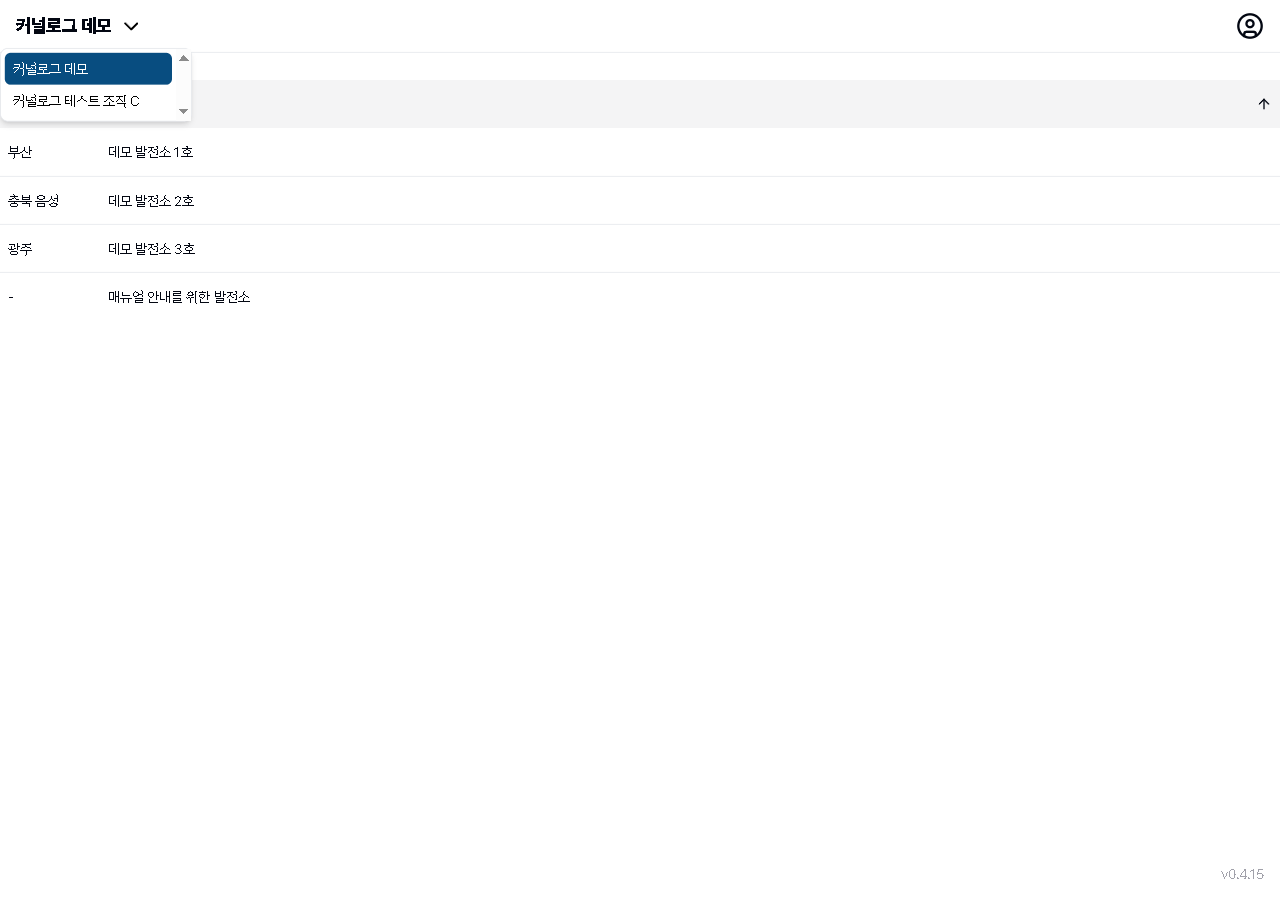
On the plant selection screen, tap the Address or Plant Name column header to sort. Tap the organization name (e.g., Conalog Demo) at the top left to switch organizations.
{manual.fielder.overview.step6}
{manual.fielder.overview.step7}
Expected result
You can view the panel arrangement on the layout map and use filters and table view to narrow down to the information you need.
If it does not work
If the PATCH Field app does not load, type patch-fielder.conalog.com directly in the browser address bar. Use the back button to return to PATCH.
Step-by-step screenshots
Follow the red-numbered hotspots in the images below alongside the steps above.
1. Tap the plant you want to check in the plant selection list. The layout map opens, showing the panel, string, and inverter arrangement.
No screenshot linked to this step yet.
2. Tap the filter (funnel) icon at the upper right. Tag (#GARD, #BSTR) and per-inverter filters appear so you can narrow down to the panels you need.
No screenshot linked to this step yet.
3. Tap the table view (grid) icon at the lower right. A measurement combo (Input Voltage V / Output Voltage V / Power W / Current A) appears at the upper left. Open it to select the measurement you want.
33
조직 전환 드롭다운
Organization dropdown — Conalog Demo (selected) and Conalog Test Org C
Organization button — tap to open organization dropdown
Organization dropdown — Conalog Demo (selected), Conalog Test Org C
4. Tap the search (🔍) icon to open a camera viewfinder for scanning device S/N barcodes. You can also type the S/N in the input field below and tap Search. Tap the fullscreen (⛶) icon to hide the top bar and expand the map. Tap the compass (N) to reset the map orientation to north.
4
PATCH 현장 발전소 선택 화면
PATCH Field plant selection screen — 4 plants listed under Conalog Demo organization
Plant list — tap a plant row to open the layout map
5. On the plant selection screen, tap the Address or Plant Name column header to sort. Tap the organization name (e.g., Conalog Demo) at the top left to switch organizations.
5
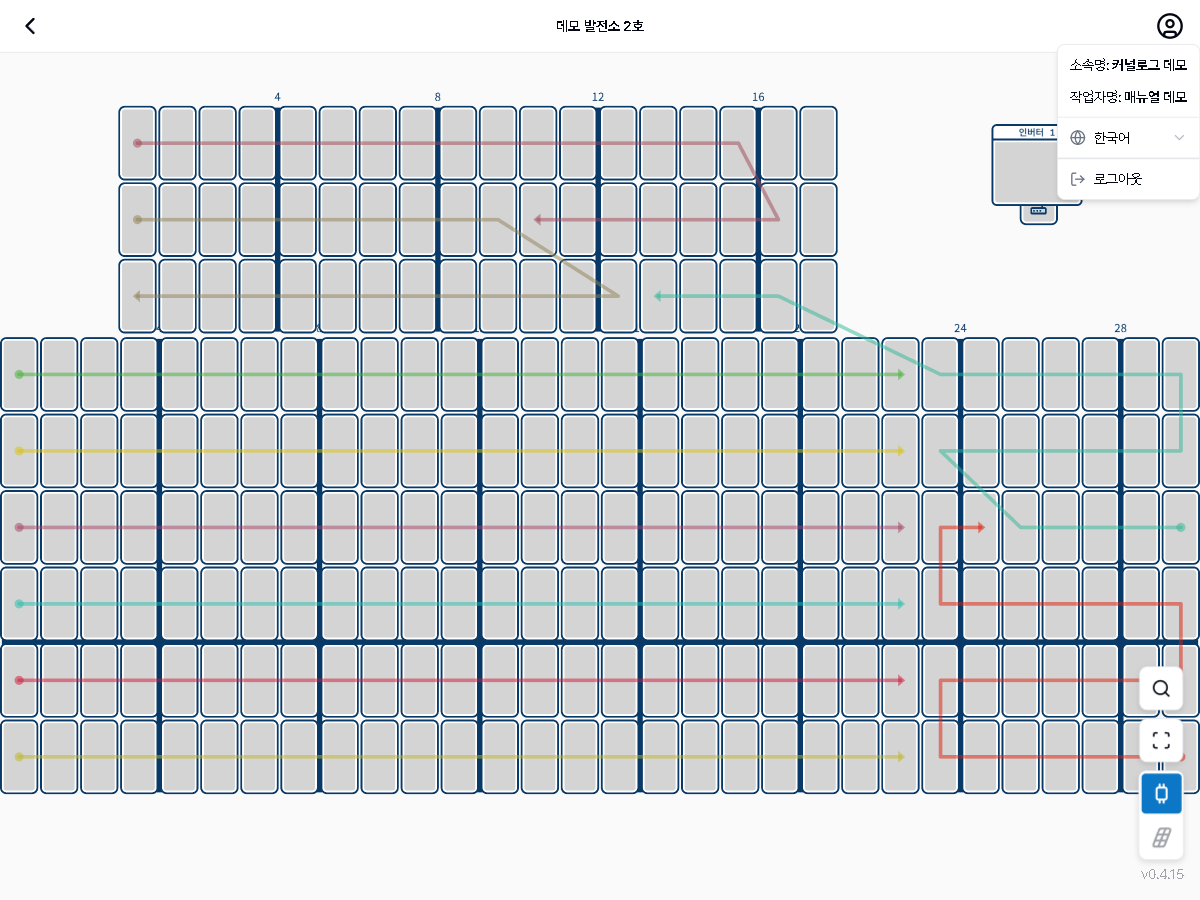
계정 메뉴
Account menu — name, email, Korean language selector, and logout
Account menu — name, email, language switch, logout