Home > C. Plant Detail > Set up a virtual plant
How to
When you want to consolidate geographically distributed plants into a single virtual plant
Starting state: You are logged in to PATCH, The plant settings dialog is open on the plant detail screen
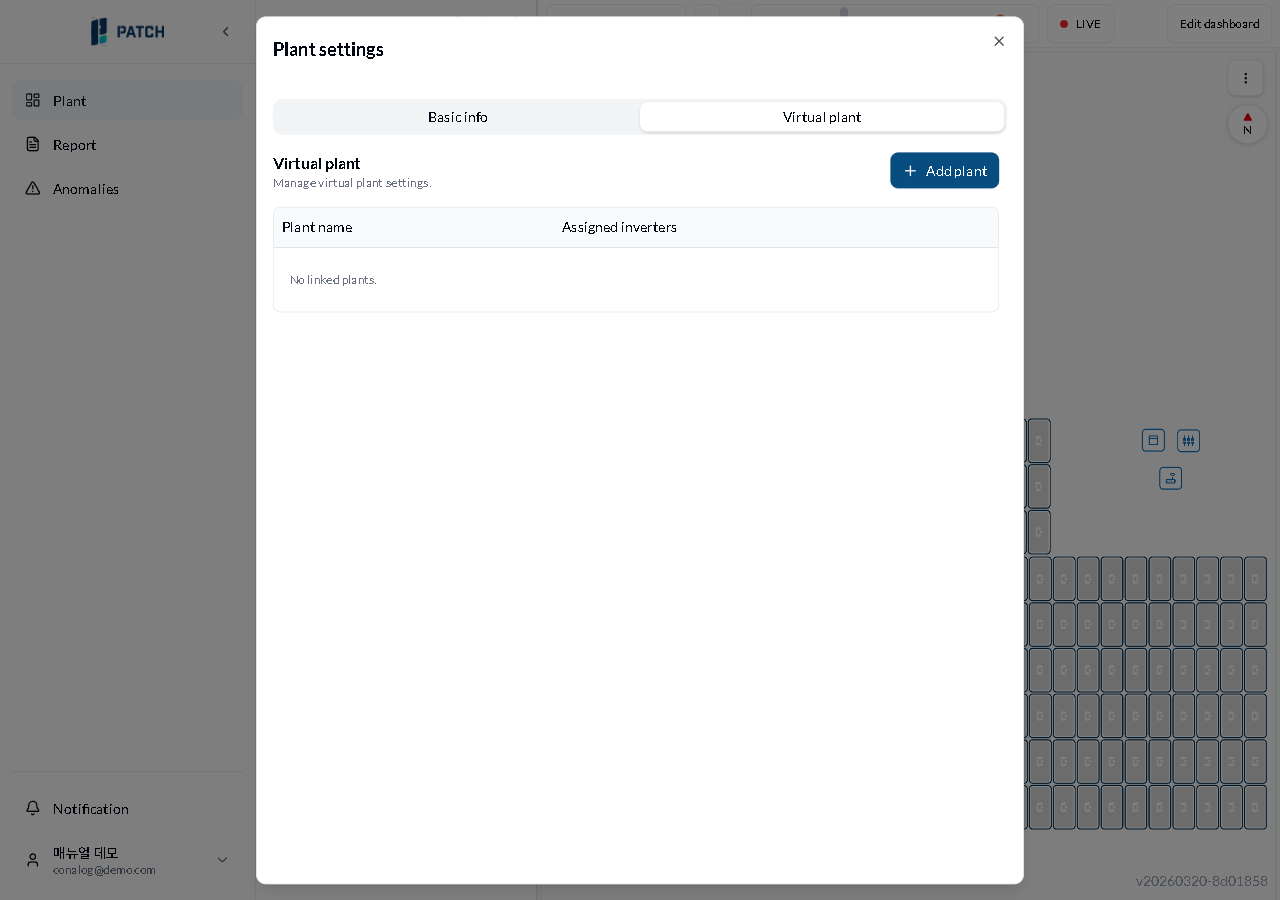
- In the plant settings dialog, click the Virtual Plant tab.
- Click Add Plant. When the plant selection dialog opens, choose the plants you want to link.
Expected result
The selected plants appear in the virtual plant table. From now on, the dashboard can display their combined data.
If it does not work
- If the Add Plant button is disabled, there are no available plants to link. Register another plant first.
Step-by-step screenshots
Follow the red-numbered hotspots in the images below alongside the steps above.
1. In the plant settings dialog, click the Virtual Plant tab.
1
가상 발전소 탭
Virtual plant tab — Add Plant button and empty table visible
- Virtual plant tab — currently selected
2. Click Add Plant. When the plant selection dialog opens, choose the plants you want to link.
2
가상 발전소 탭
Virtual plant tab — Add Plant button and empty table visible
- Add Plant button — click to open a dialog for selecting plants to link