Home > K. Device (MLPE) Registration > Enter MLPE device registration
Step-by-step guide
Enter MLPE device registration
Enter the MLPE device registration screen in the PATCH Field app.
Estimated time: 4~5min · Last updated: 2026-03-22
How to
When you need to connect and register a new MLPE device to a panel on-site
Starting state: A plant is selected in the PATCH Field app (the layout map is visible)
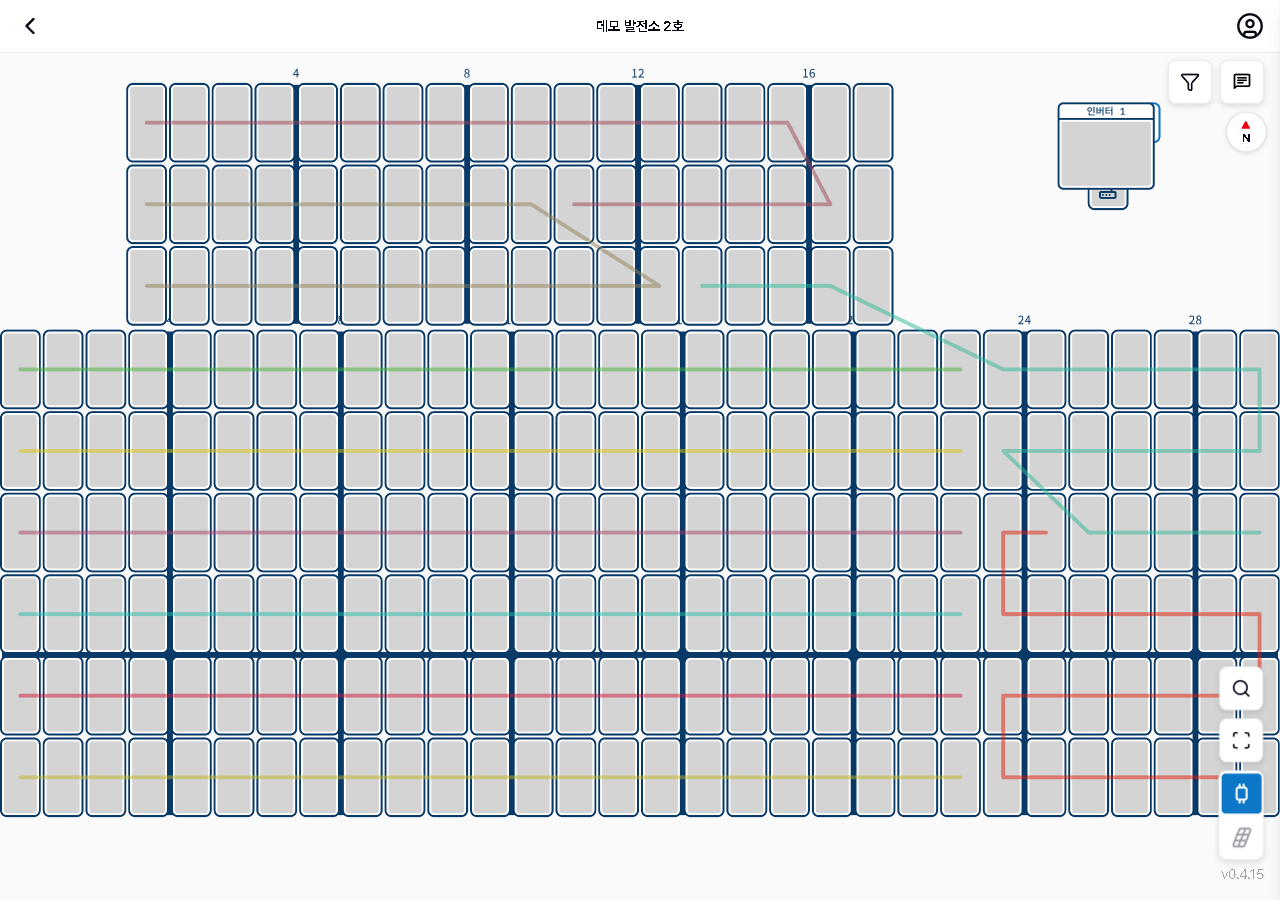
Tap the device registration (blue phone) icon at the lower right. The app switches to device registration mode.
Tap the panel on the layout map where you want to connect the MLPE device.
Tap the search (🔍) icon to scan the device S/N barcode with the camera, or type the S/N directly in the input field below. Select the device from search results to proceed with registration.
{manual.fielder.device.step4}
Expected result
Device registration mode activates, and tapping a panel brings up the MLPE device selection screen.
If it does not work
If the blue device registration button is not visible, check the toolbar at the lower right. You may need to scroll down to see it.
Step-by-step screenshots
Follow the red-numbered hotspots in the images below alongside the steps above.
1. Tap the device registration (blue phone) icon at the lower right. The app switches to device registration mode.
1
디바이스 등록 모드 활성 화면
Device registration mode active — layout map with blue device registration icon highlighted at lower right
Device registration icon (blue, active) — tap to toggle registration mode
2. Tap the panel on the layout map where you want to connect the MLPE device.
No screenshot linked to this step yet.
3. Tap the search (🔍) icon to scan the device S/N barcode with the camera, or type the S/N directly in the input field below. Select the device from search results to proceed with registration.