Home > G. Anomaly Detection > Review the weekly anomaly summary
Step-by-step guide
Review the weekly anomaly summary
Review this week's anomaly status and examine the classification criteria by anomaly type.
Estimated time: 4~5min · Last updated: 2026-03-21
How to
When you want a quick overview of whether any anomalies occurred this week
Starting state: You are logged in to PATCH, You have clicked Anomaly Detection in the left menu and the anomaly screen is open
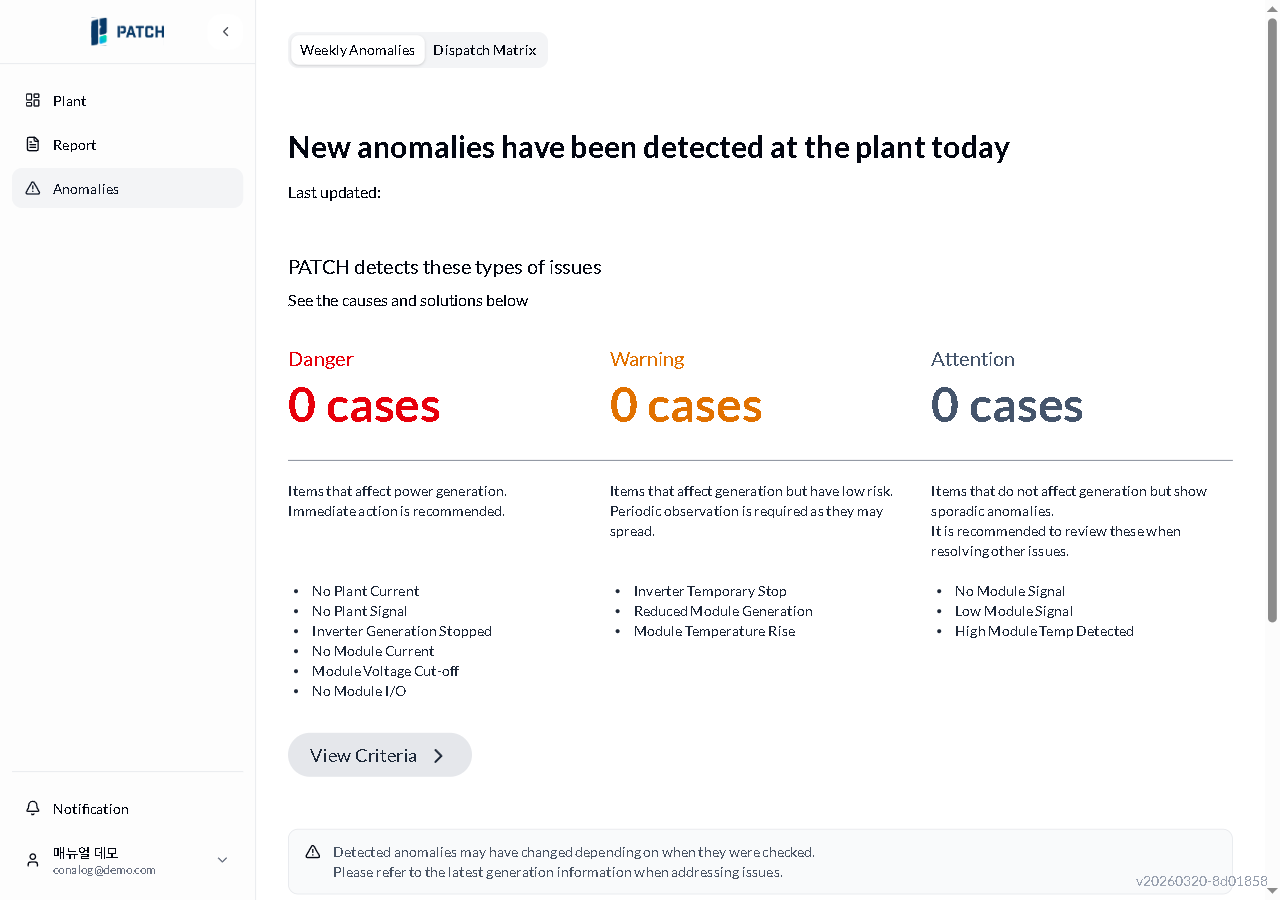
Read the count and listed anomaly types on each severity card (Critical, Warning, Watch) in the center of the screen. Critical items require immediate action, Warning items need periodic observation, and Watch items are one-time anomalies.
Switch between By Plant and By Anomaly Type toggles to change the grouping. Check each plant's anomaly items and daily counts.
Use the Group by Plant / Group by Anomaly Type toggle below the cards to switch the view. To go to the dispatch table, click the Anomaly Dispatch Table tab at the top.
Note the warning at the bottom: detected anomalies may have changed since last checked. Click Contact Us for Conalog AI support, or View Criteria for external documentation on classification rules.
Expected result
The Critical / Warning / Watch counts give an at-a-glance view of this week's anomaly scale, and the type lists show what kinds of anomalies occurred.
If it does not work
If all counts are zero, no anomalies were detected that week. Switch to the Anomaly Dispatch Table tab and select a past date to view history.
If the page is stuck blank, refresh the browser (F5).
Step-by-step screenshots
Follow the red-numbered hotspots in the images below alongside the steps above.
1. Read the count and listed anomaly types on each severity card (Critical, Warning, Watch) in the center of the screen. Critical items require immediate action, Warning items need periodic observation, and Watch items are one-time anomalies.
1
주간 이상 현황
Anomaly detection weekly anomalies tab — danger/warning/attention cards and anomaly type list visible
Danger/Warning/Attention card area — count for each severity level displayed prominently
2. Switch between By Plant and By Anomaly Type toggles to change the grouping. Check each plant's anomaly items and daily counts.
2
주간 이상 현황
Anomaly detection weekly anomalies tab — danger/warning/attention cards and anomaly type list visible
View classification criteria link — click to navigate to the anomaly type classification detail page
3. Use the Group by Plant / Group by Anomaly Type toggle below the cards to switch the view. To go to the dispatch table, click the Anomaly Dispatch Table tab at the top.
3
주간 이상 현황
Anomaly detection weekly anomalies tab — danger/warning/attention cards and anomaly type list visible
Tab bar — Weekly Anomalies (currently selected) and Anomaly Summary Table tabs
4. Note the warning at the bottom: detected anomalies may have changed since last checked. Click Contact Us for Conalog AI support, or View Criteria for external documentation on classification rules.