Register a new plant to start monitoring it with PATCH.
Estimated time: 4~5min · Last updated: 2026-03-21
How to
When adding a newly installed plant to the system
Starting state: The plant list screen is open, You have permission to register plants in the target organization
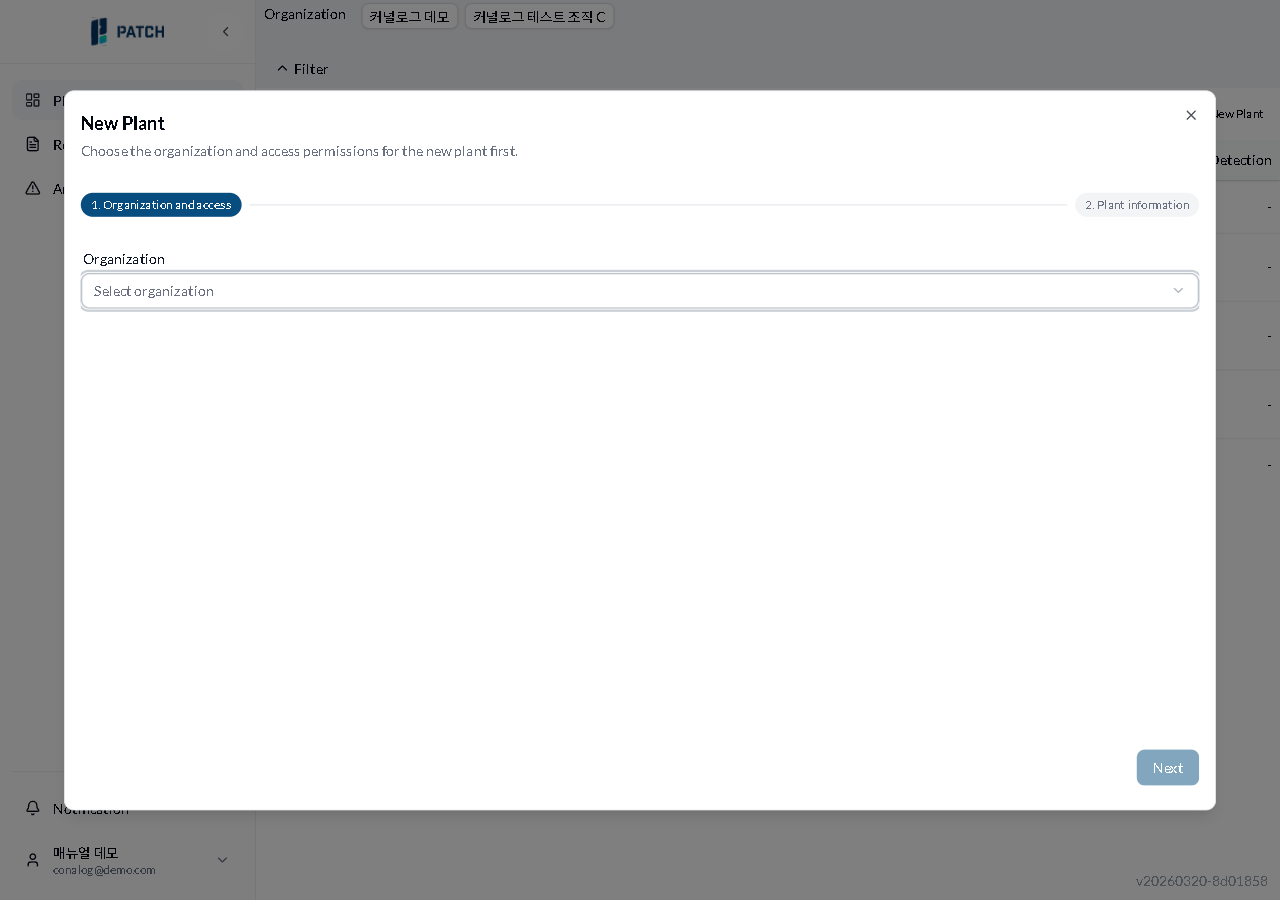
Click + New Plant at the upper right of the list. The registration wizard opens.
After selecting an organization, the maintainer account permissions list appears. Set access permissions using Select All or individual checkboxes, then click Next.
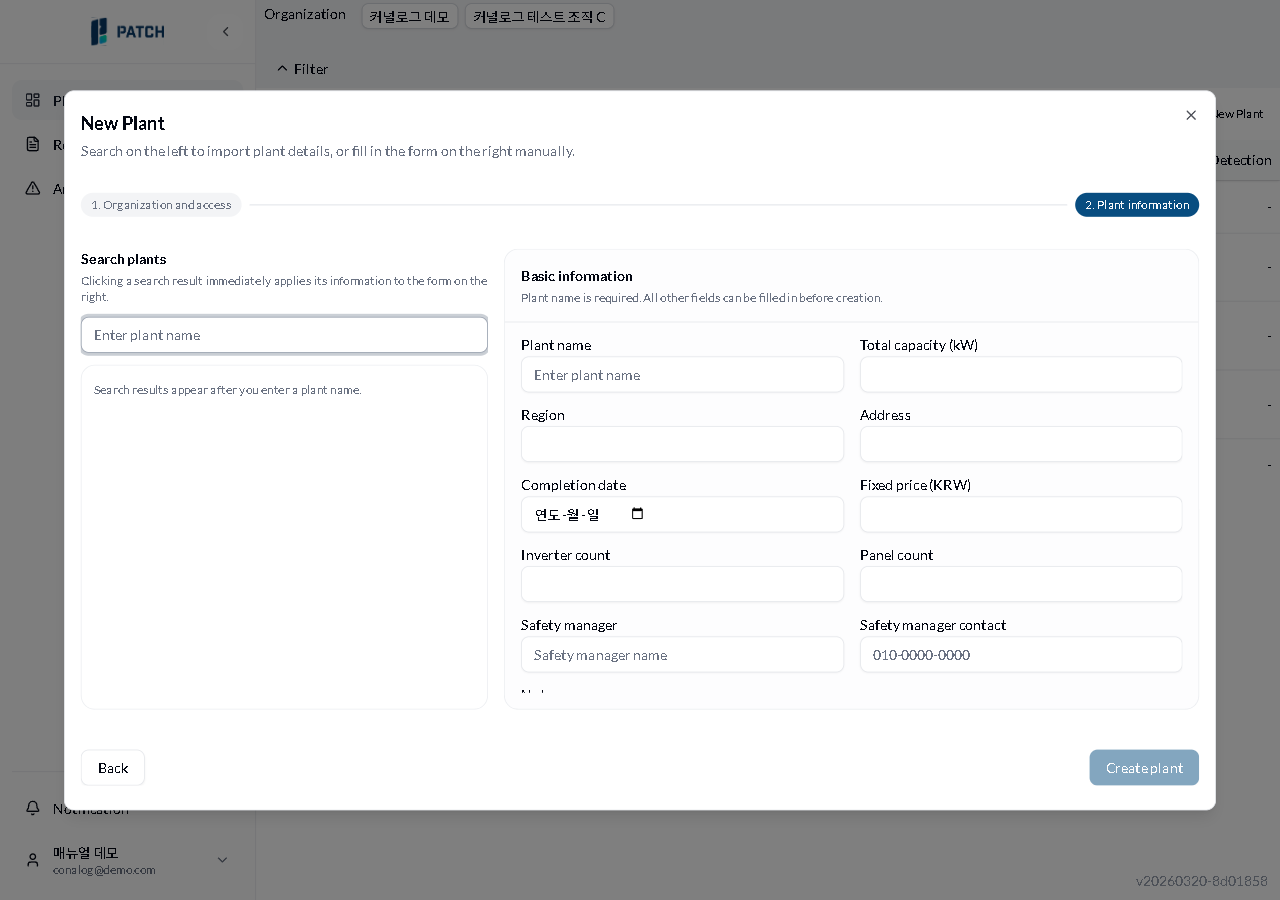
Enter a plant name in the left search box to search an external plant database. Clicking a result auto-fills the form on the right. Enter the plant name and click Create Plant.
Fill in the remaining fields (capacity, address, number of inverters, etc.) as needed and click Create Plant.
Expected result
The plant is created and you are taken to its dashboard. The new plant also appears in the plant list.
If it does not work
If the Create Plant button is disabled, check that the plant name (required) has been entered.
If the permission list does not appear after selecting an organization, try clicking the refresh button.
Step-by-step screenshots
Follow the red-numbered hotspots in the images below alongside the steps above.
1. Click + New Plant at the upper right of the list. The registration wizard opens.
1
1단계 조직 선택
New plant registration step 1 — wizard dialog showing organization select combo box and Next button
Organization select area — "Organization" label and combo box. Choose which organization the plant belongs to.
2. After selecting an organization, the maintainer account permissions list appears. Set access permissions using Select All or individual checkboxes, then click Next.
2
1단계 조직 선택
New plant registration step 1 — wizard dialog showing organization select combo box and Next button
Next button — proceed to step 2 after selecting organization
3. Enter a plant name in the left search box to search an external plant database. Clicking a result auto-fills the form on the right. Enter the plant name and click Create Plant.
3
2단계 정보 입력
New plant registration step 2 — left side plant search, right side 11-field info form, Previous and Create Plant buttons at bottom
Plant search area — title, description, search input, result list. Selecting an existing plant auto-fills the right form.
4. Fill in the remaining fields (capacity, address, number of inverters, etc.) as needed and click Create Plant.
44
2단계 정보 입력
New plant registration step 2 — left side plant search, right side 11-field info form, Previous and Create Plant buttons at bottom
Plant name field — label and input. This is a required field.
Create Plant button — becomes active after entering plant name