Home > J. Layout Map > Step fielder-layout-002
How to
{manual.fielder.layout.tools.when1}
Starting state: {manual.fielder.layout.tools.precondition1}
- {manual.fielder.layout.tools.step1}
- {manual.fielder.layout.tools.step2}
- {manual.fielder.layout.tools.step3}
- {manual.fielder.layout.tools.step4}
- {manual.fielder.layout.tools.step5}
- {manual.fielder.layout.tools.step6}
Expected result
{manual.fielder.layout.tools.expected}
If it does not work
- {manual.fielder.layout.tools.troubleshoot1}
Step-by-step screenshots
Follow the red-numbered hotspots in the images below alongside the steps above.
1. {manual.fielder.layout.tools.step1}
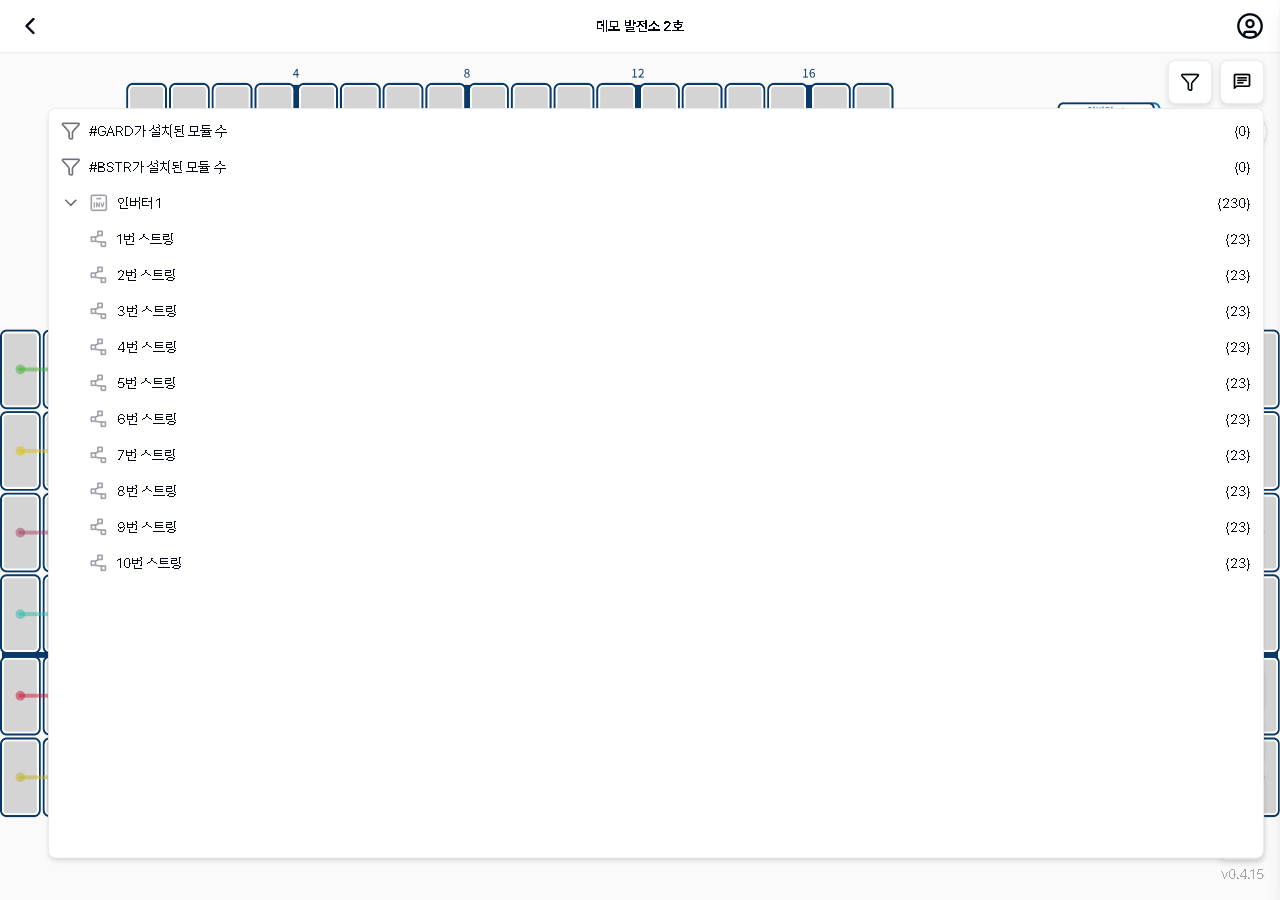
1
필터 패널 열린 상태
Filter panel — #GARD(0), #BSTR(0) tag filters and Inverter 1 with 10 strings (23 panels each) fully expanded
- Tag filters — #GARD(0), #BSTR(0). Tap to highlight panels with that tag
2. {manual.fielder.layout.tools.step2}
2
필터 패널 열린 상태
Filter panel — #GARD(0), #BSTR(0) tag filters and Inverter 1 with 10 strings (23 panels each) fully expanded
- Inverter/string tree — Inverter 1 (230) expanded, strings 1-10 with 23 panels each
3. {manual.fielder.layout.tools.step3}
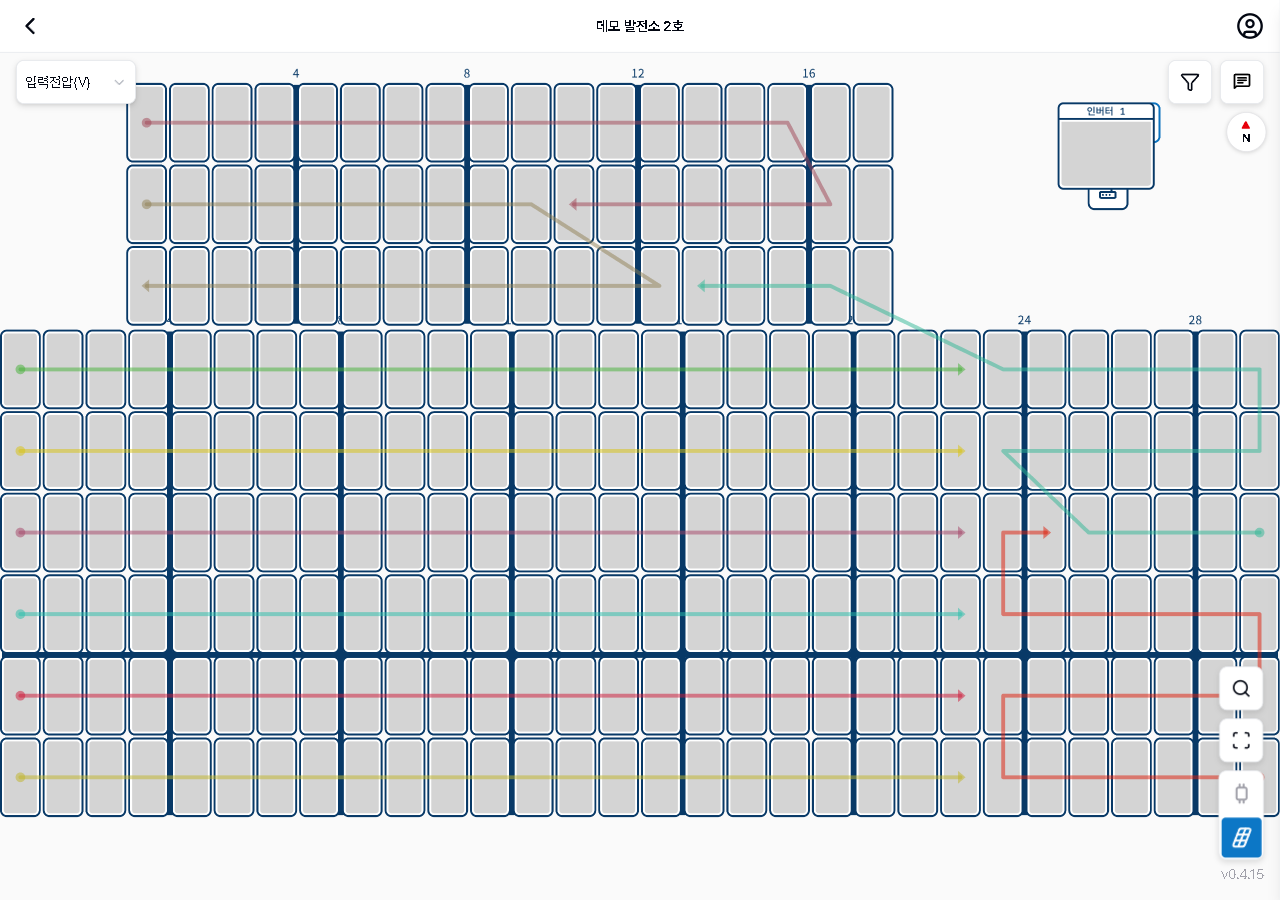
3
3
테이블 뷰 측정값 콤보
Table view active — Input Voltage (V) measurement combo at upper left, grid icon highlighted blue at lower right
- Measurement combo — select from Input Voltage V / Output Voltage V / Power W / Current A
- Table view icon (blue, active) — tap again to deactivate
4. {manual.fielder.layout.tools.step4}
No screenshot linked to this step yet.
5. {manual.fielder.layout.tools.step5}
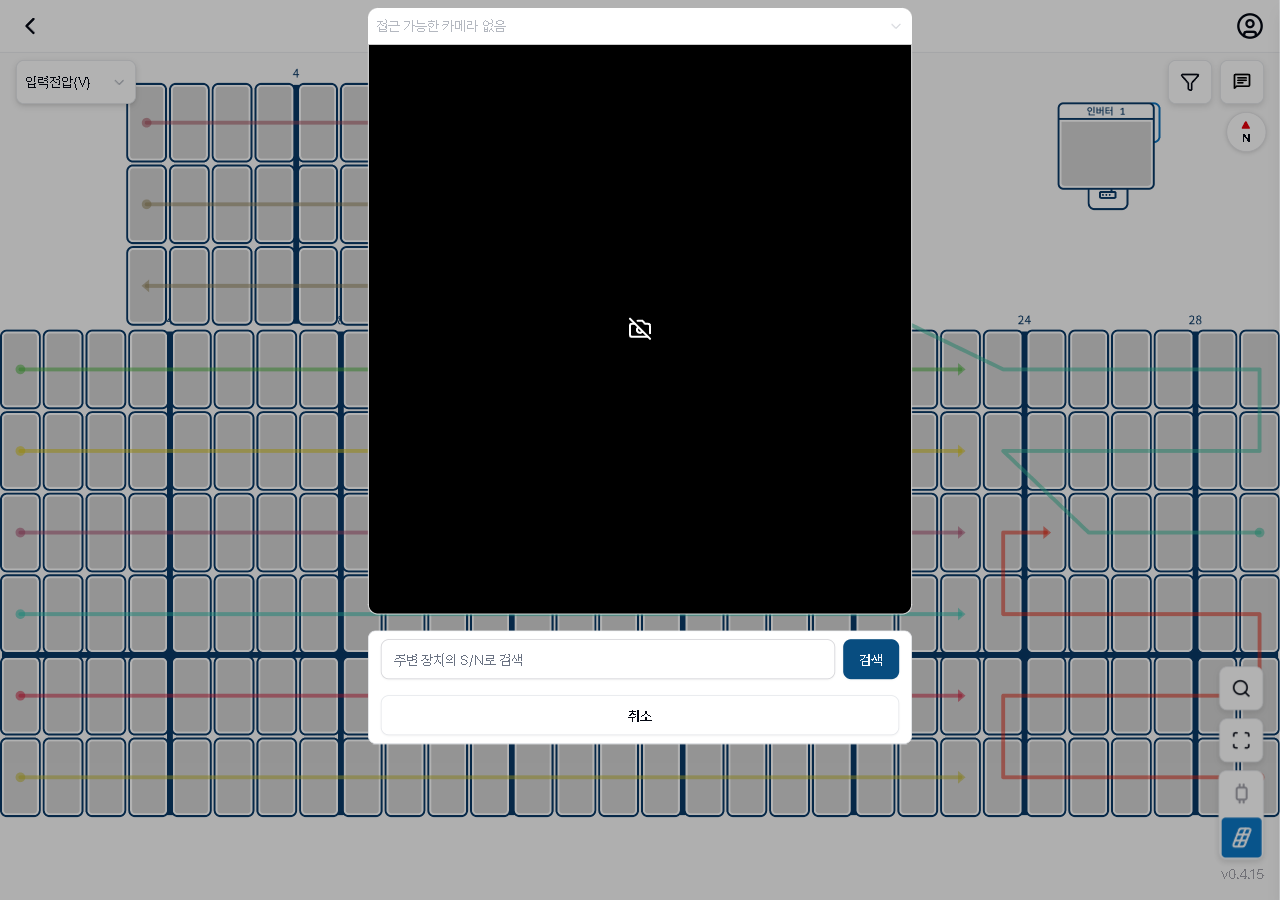
5
5
검색 화면(카메라+입력)
Search screen — camera viewfinder (not accessible), S/N input field with search and cancel buttons at bottom
- S/N input field — enter device S/N manually and tap Search
- Camera viewfinder — scan device S/N barcode. Not accessible on desktop
6. {manual.fielder.layout.tools.step6}
No screenshot linked to this step yet.