Home > H. Notifications & Account > Account settings and organization
Step-by-step guide
Account settings and organization
Edit your profile, check your organization, and switch the UI language from the account menu.
Estimated time: 4~5min · Last updated: 2026-03-21
How to
When you want to change your name, check your organization, or switch the language
Starting state: You are logged in to PATCH
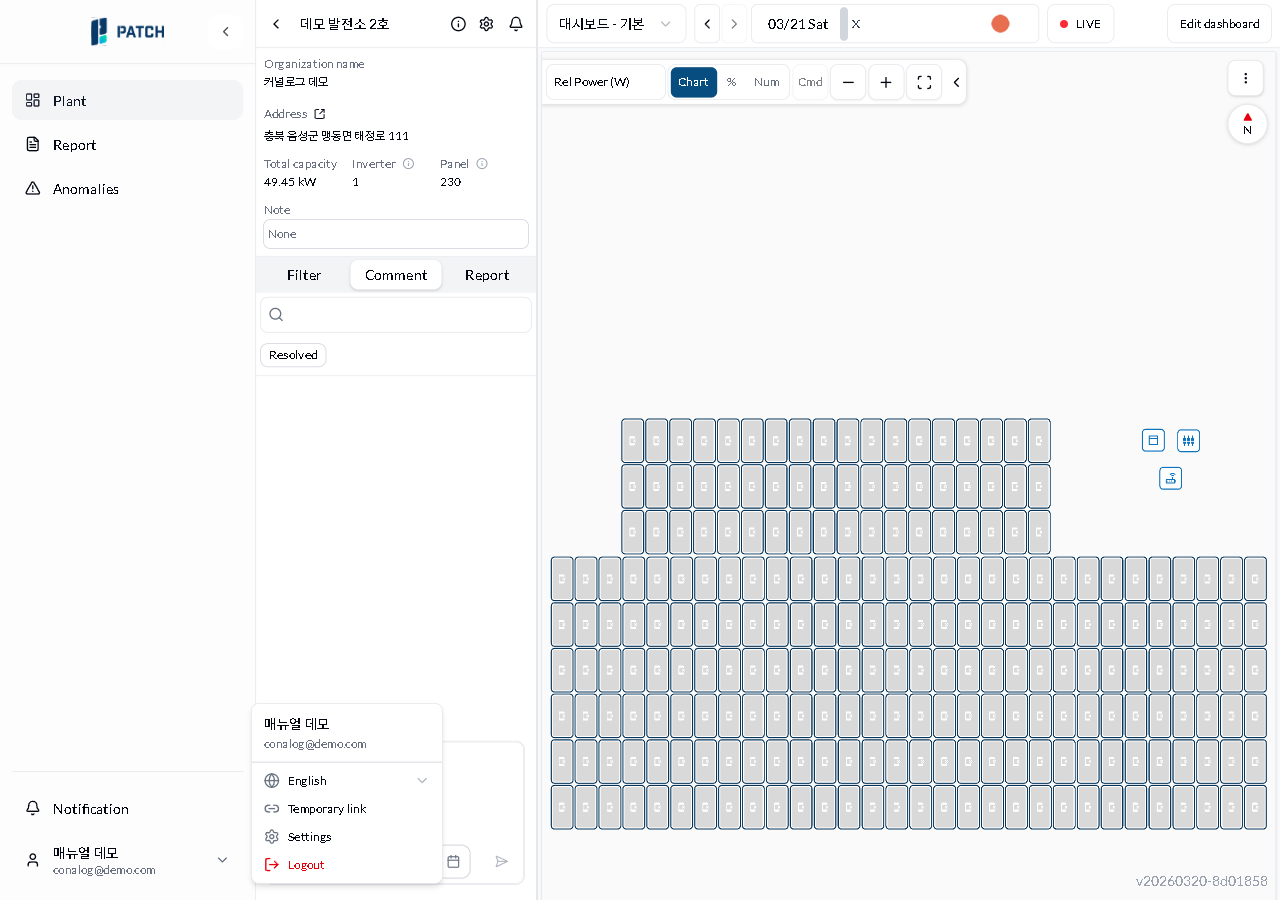
Click the account button at the bottom of the sidebar. From the dropdown, you can switch between Korean and English, copy a temporary link, open settings, or log out.
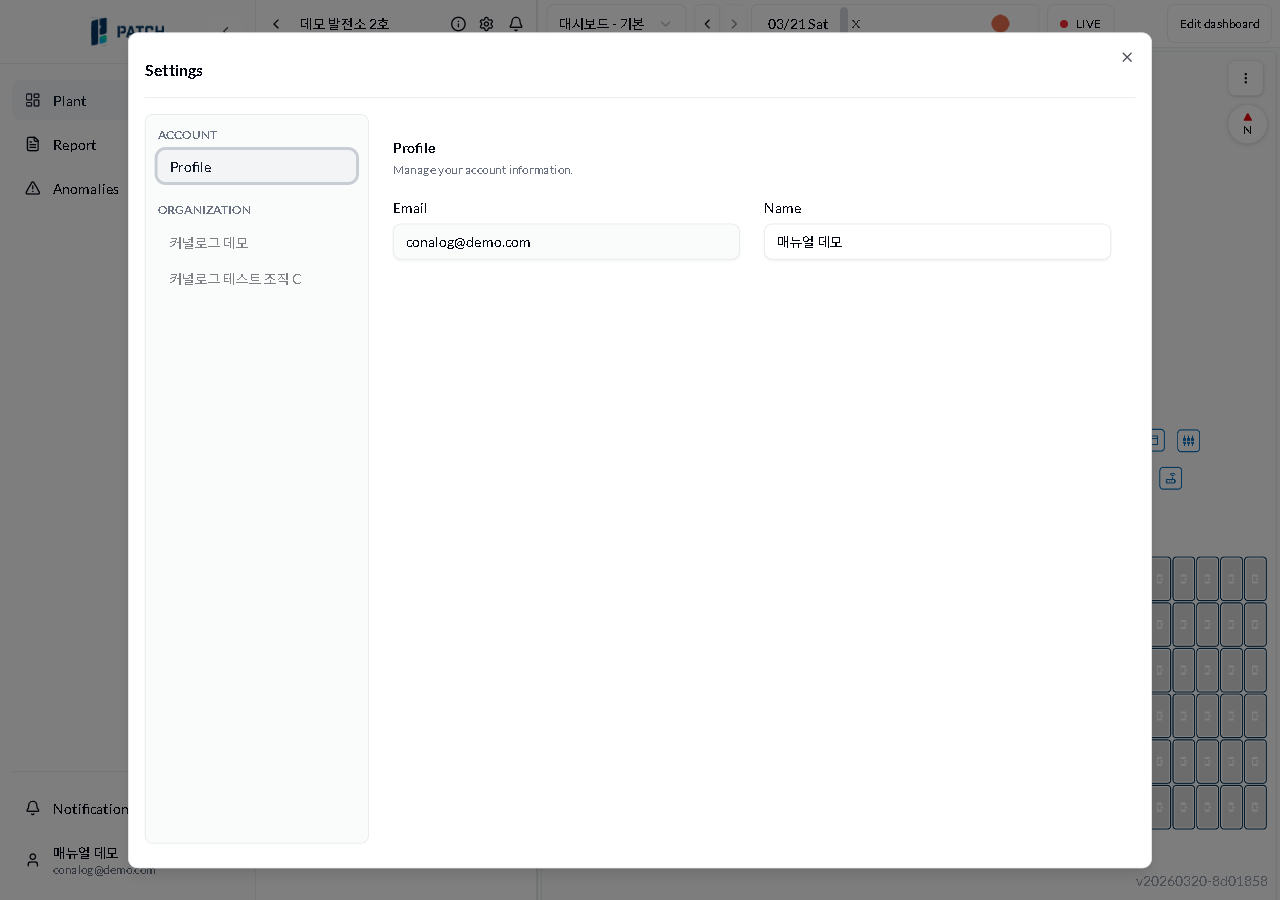
Click Settings. On the Profile tab, verify your email (read-only) and edit your display name.
Click the collapse (<) button at the top of the sidebar to switch to an icon-only mini sidebar. Click the expand (>) button to restore it to full size.
Check your organization name in the Organization section of the left navigation.
Expected result
Name changes take effect immediately, and switching languages converts the entire UI to the selected language.
If it does not work
If the account menu is not visible, check the bottom of the sidebar.
If name changes are not saved, refresh the page (F5) and try again.
The notification panel can also be opened with the Alt+T keyboard shortcut.
Step-by-step screenshots
Follow the red-numbered hotspots in the images below alongside the steps above.
1. Click the account button at the bottom of the sidebar. From the dropdown, you can switch between Korean and English, copy a temporary link, open settings, or log out.
1
계정 드롭다운 메뉴
Account dropdown menu — language switch, temporary link, settings, and logout items visible
Account dropdown menu — language switch, temporary link, settings, logout items
2. Click Settings. On the Profile tab, verify your email (read-only) and edit your display name.
2
설정 다이얼로그
Settings dialog — account/organization navigation on the left, email and name edit form on the right
Profile edit area — email (read-only) and name input field
3. Click the collapse (<) button at the top of the sidebar to switch to an icon-only mini sidebar. Click the expand (>) button to restore it to full size.
3
설정 다이얼로그
Settings dialog — account/organization navigation on the left, email and name edit form on the right
Settings navigation — Account (Profile), Organizations (Conalog Demo, Conalog Test Org C) list
4. Check your organization name in the Organization section of the left navigation.