Quickly find a specific plant using search or organization filters.
Estimated time: 3~4min · Last updated: 2026-03-21
How to
When you want to jump to a specific plant without scrolling
Starting state: You are logged in to PATCH, The plant list screen (/app) is open
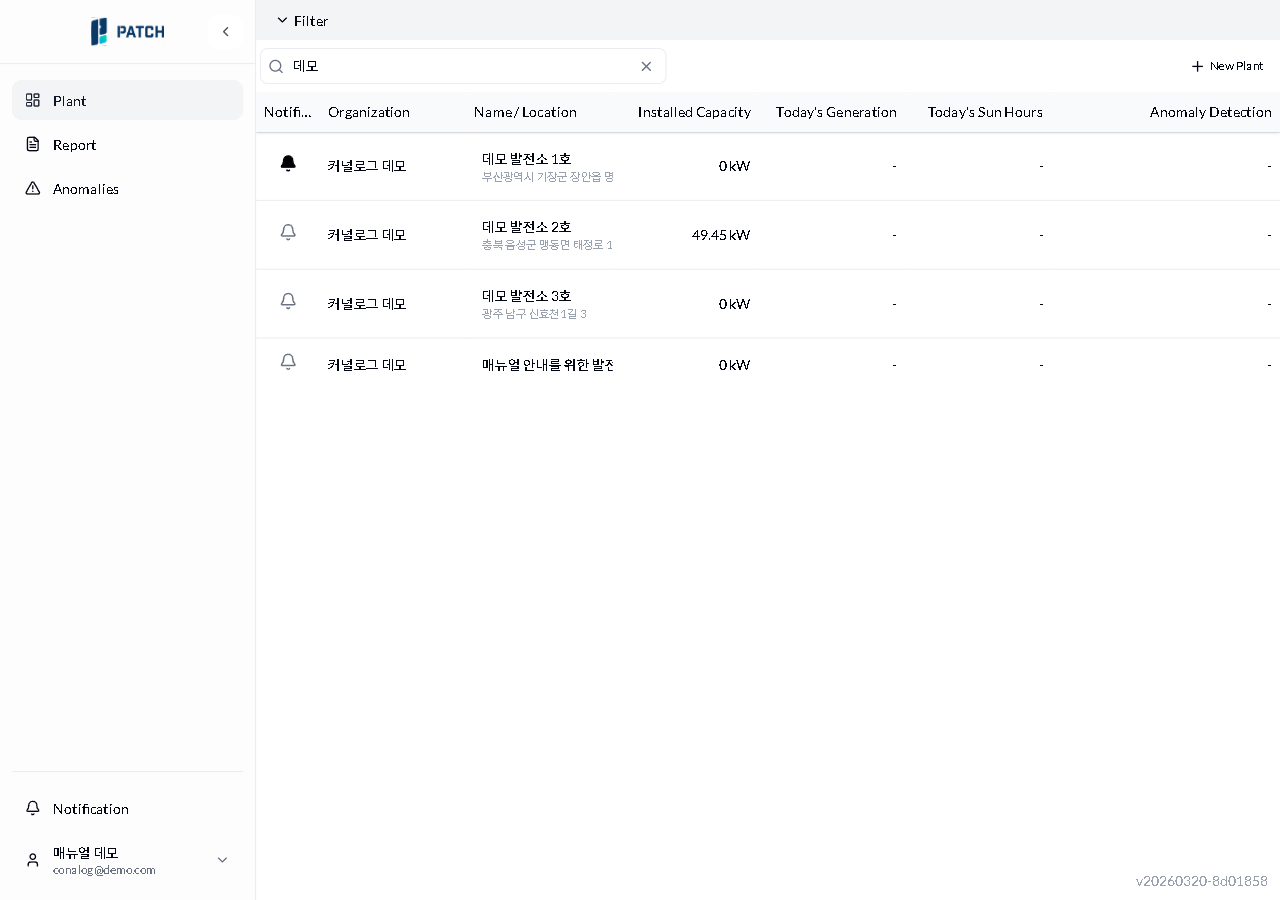
Type a few characters (2-3) of the plant name into the search bar at the top of the list. The list filters automatically, showing only plants that match the keyword.
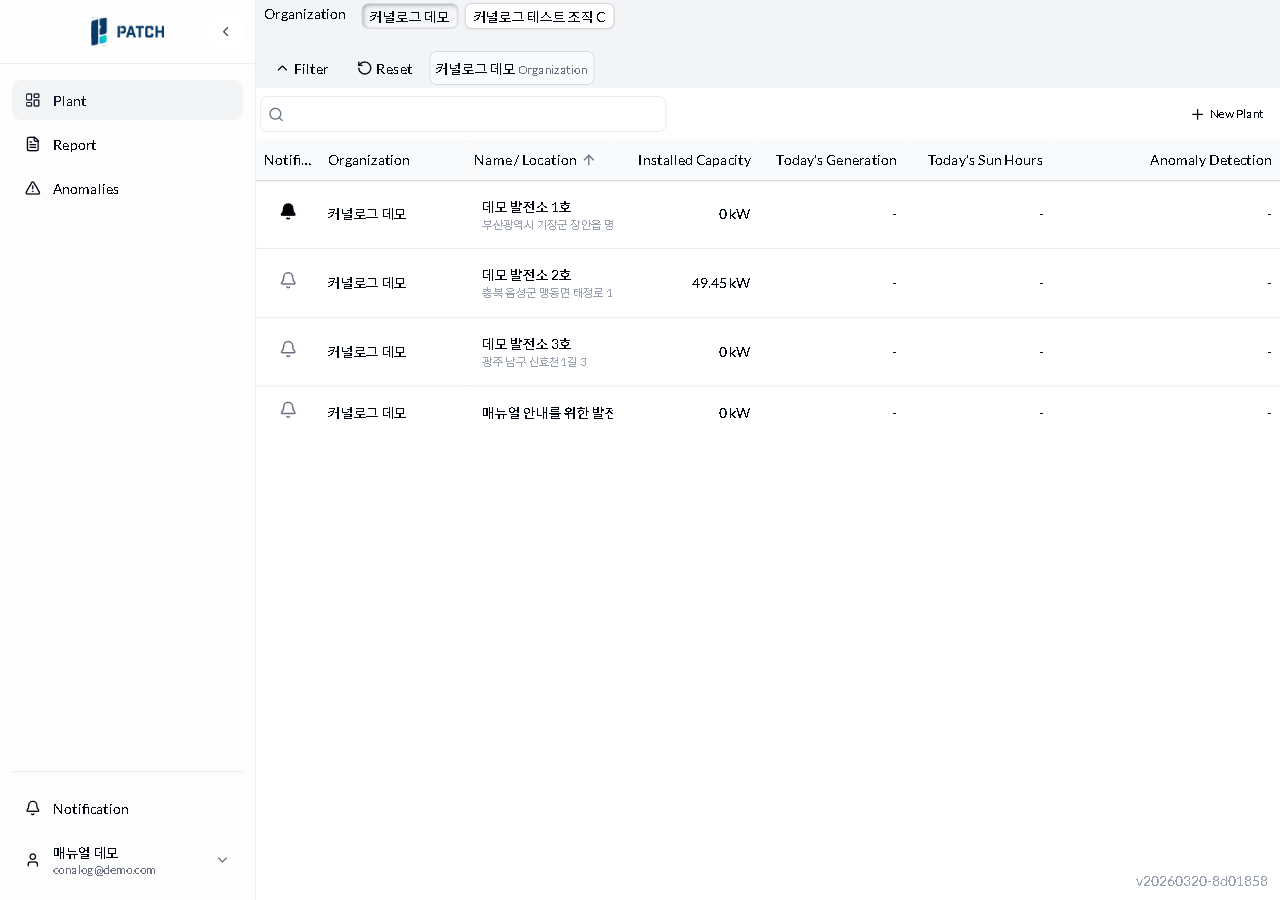
To filter by organization, click Filter above the search bar. When the organization chip list appears, select the organization you want.
To return to the full list, click Reset. Both the search text and any active filters are cleared.
Expected result
Searching reduces the rows to matching plants. Applying a filter shows only that organization's plants. Resetting restores the full list.
If it does not work
If the list does not change after typing, clear all text and re-enter just 2-3 characters.
If filtering has no effect, click Reset first, then select the organization chip again.
Step-by-step screenshots
Follow the red-numbered hotspots in the images below alongside the steps above.
1. Type a few characters (2-3) of the plant name into the search bar at the top of the list. The list filters automatically, showing only plants that match the keyword.
1
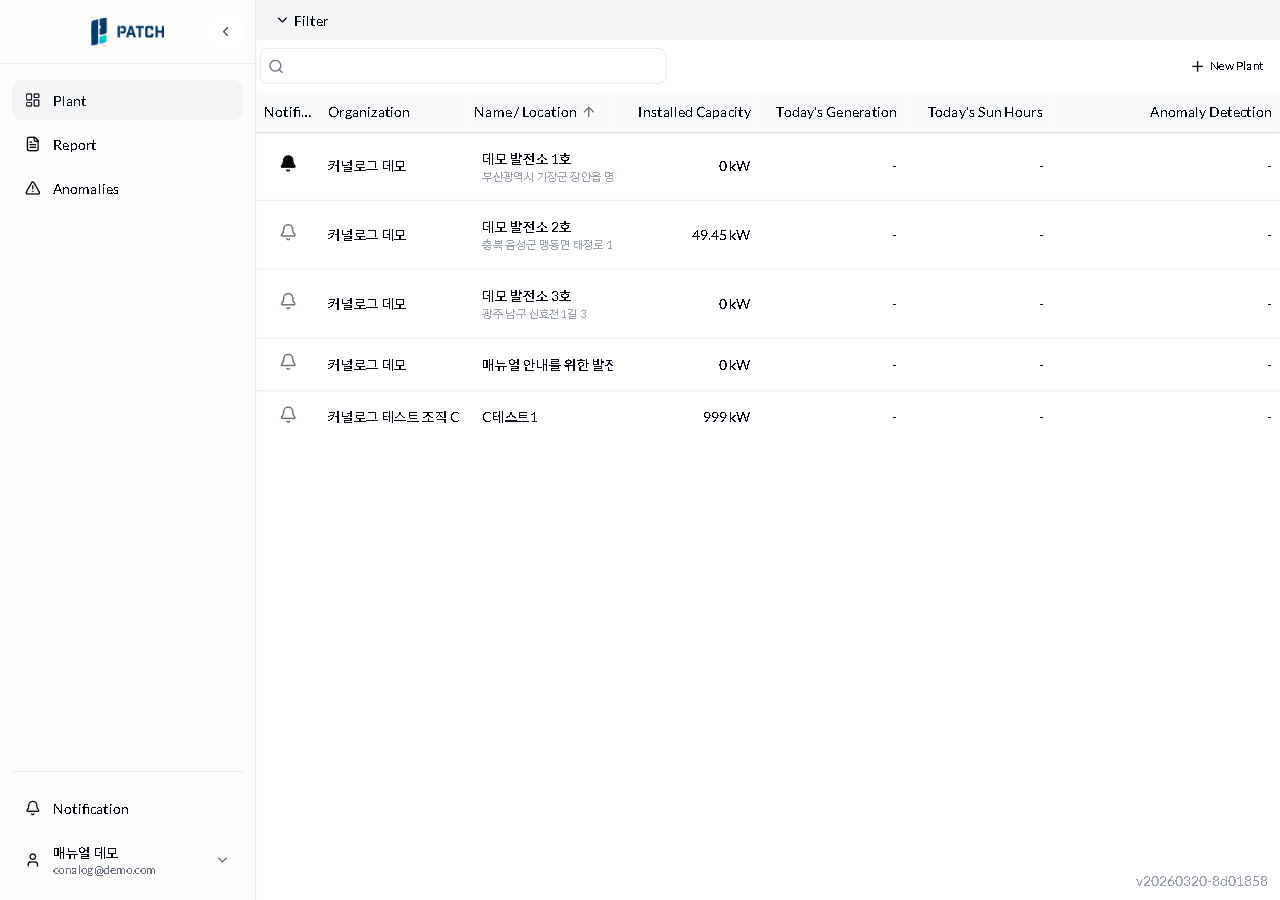
초기 목록
Plant list initial state — 5 plants displayed in name ascending order, with search bar and filter button visible
Search bar — type a keyword here to filter the list in real time
1
검색 결과
After typing "demo" in search — list reduced from 5 to 4, showing only plants containing the keyword
Search bar with "demo" entered and a clear (x) button on the right
2. To filter by organization, click Filter above the search bar. When the organization chip list appears, select the organization you want.
2
초기 목록
Plant list initial state — 5 plants displayed in name ascending order, with search bar and filter button visible
Filter button — click to expand the organization chip list
2
필터 적용
After selecting "Conalog Demo" in organization filter — only 4 plants from that organization shown, with reset button and organization chips visible
Organization chip area — "Conalog Demo" is selected and highlighted. Click an organization chip to filter.
3. To return to the full list, click Reset. Both the search text and any active filters are cleared.
3
필터 적용
After selecting "Conalog Demo" in organization filter — only 4 plants from that organization shown, with reset button and organization chips visible
Filter toolbar — click "Reset" to clear all filters and search