Home > B. Plant List > Toggle per-plant notifications
How to
When you want to receive notifications only for the plants you manage
Starting state: The plant list screen is open
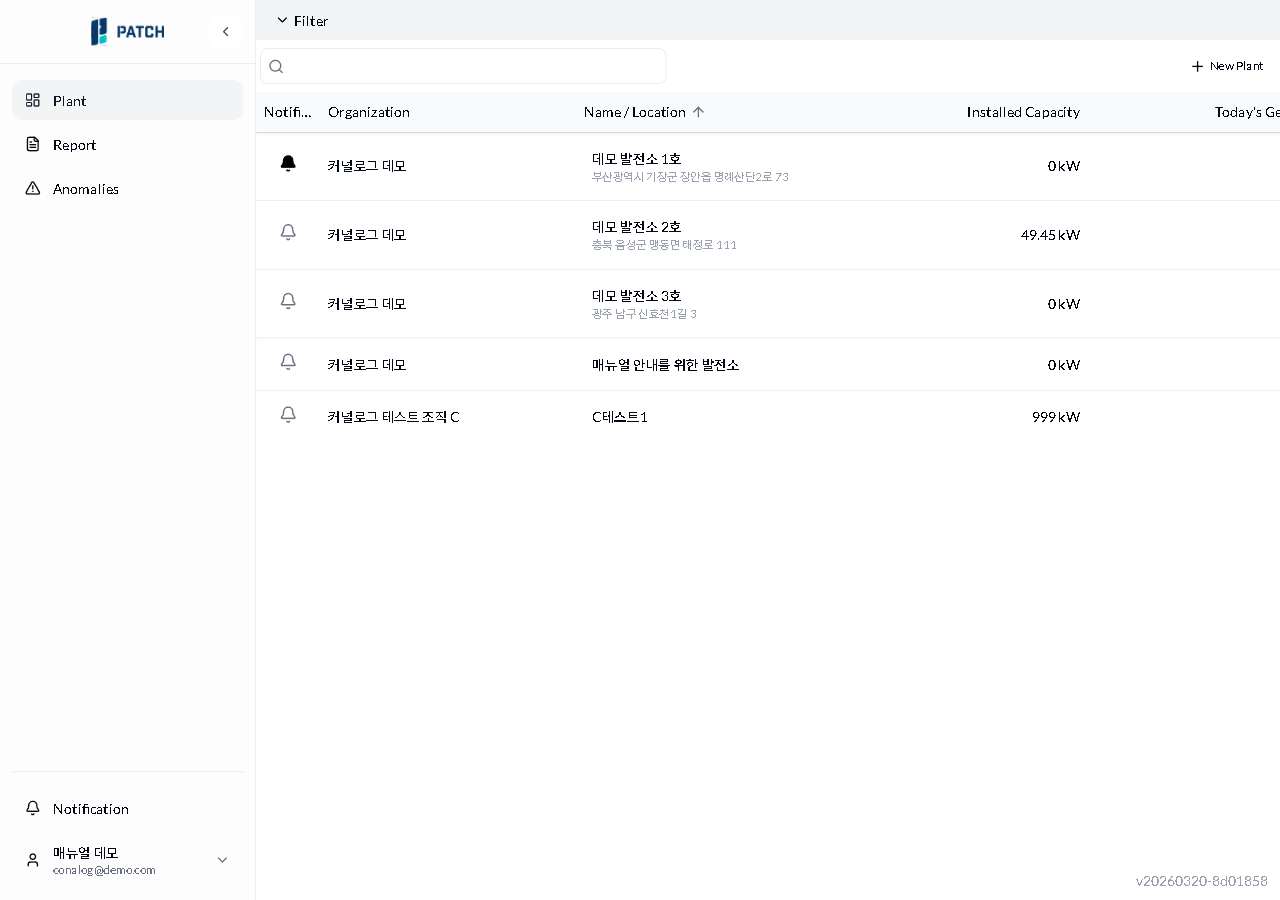
- Click the bell icon at the far left of the plant row you want to change.
- A filled bell means notifications are on; an outline bell means they are off. Each click toggles the state.
Expected result
The bell icon switches between filled and outline, turning notifications on or off for that plant.
If it does not work
- If the bell icon does not change, refresh the page (F5) and try again.
Step-by-step screenshots
Follow the red-numbered hotspots in the images below alongside the steps above.
1. Click the bell icon at the far left of the plant row you want to change.
1
알림 벨 상태
Plant list with Demo Plant 1 bell filled (notifications enabled), others showing empty bell (notifications disabled)
- Demo Plant 1 notification bell area — filled bell icon means notifications are on. Click to toggle.
2. A filled bell means notifications are on; an outline bell means they are off. Each click toggles the state.
No screenshot linked to this step yet.