Home > C. Plant Detail > View and edit plant information
Step-by-step guide
View and edit plant information
Read the information panel on the plant detail screen and edit the settings.
Estimated time: 4~5min · Last updated: 2026-03-21
How to
When you need to view or edit basic plant information
Starting state: You are logged in to PATCH, The plant list screen (/app) is open
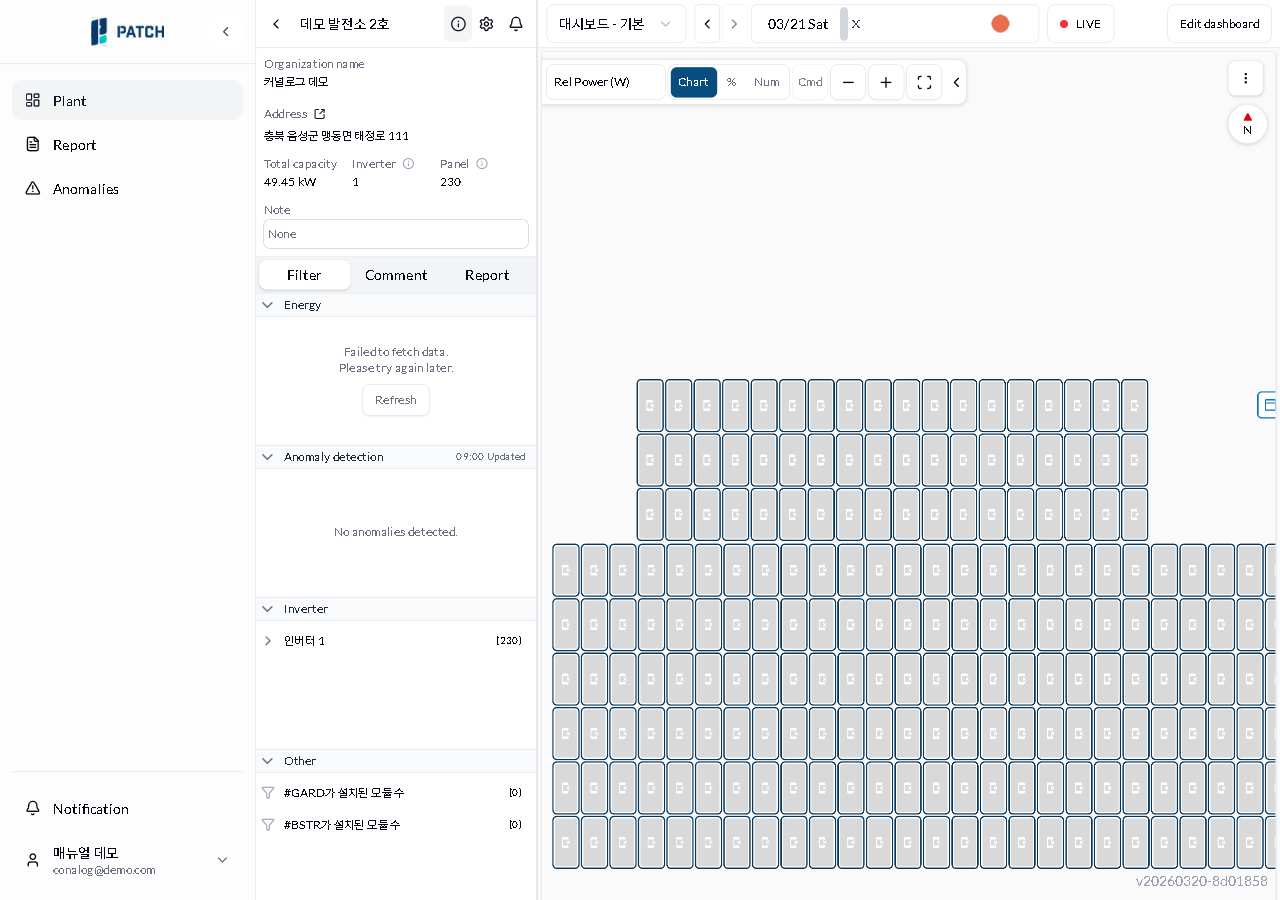
Click a plant row in the plant list. The detail screen opens, and the information panel on the left shows the organization, address, total capacity, inverter/panel counts, and notes.
Click the gear icon in the header. The plant settings dialog opens.
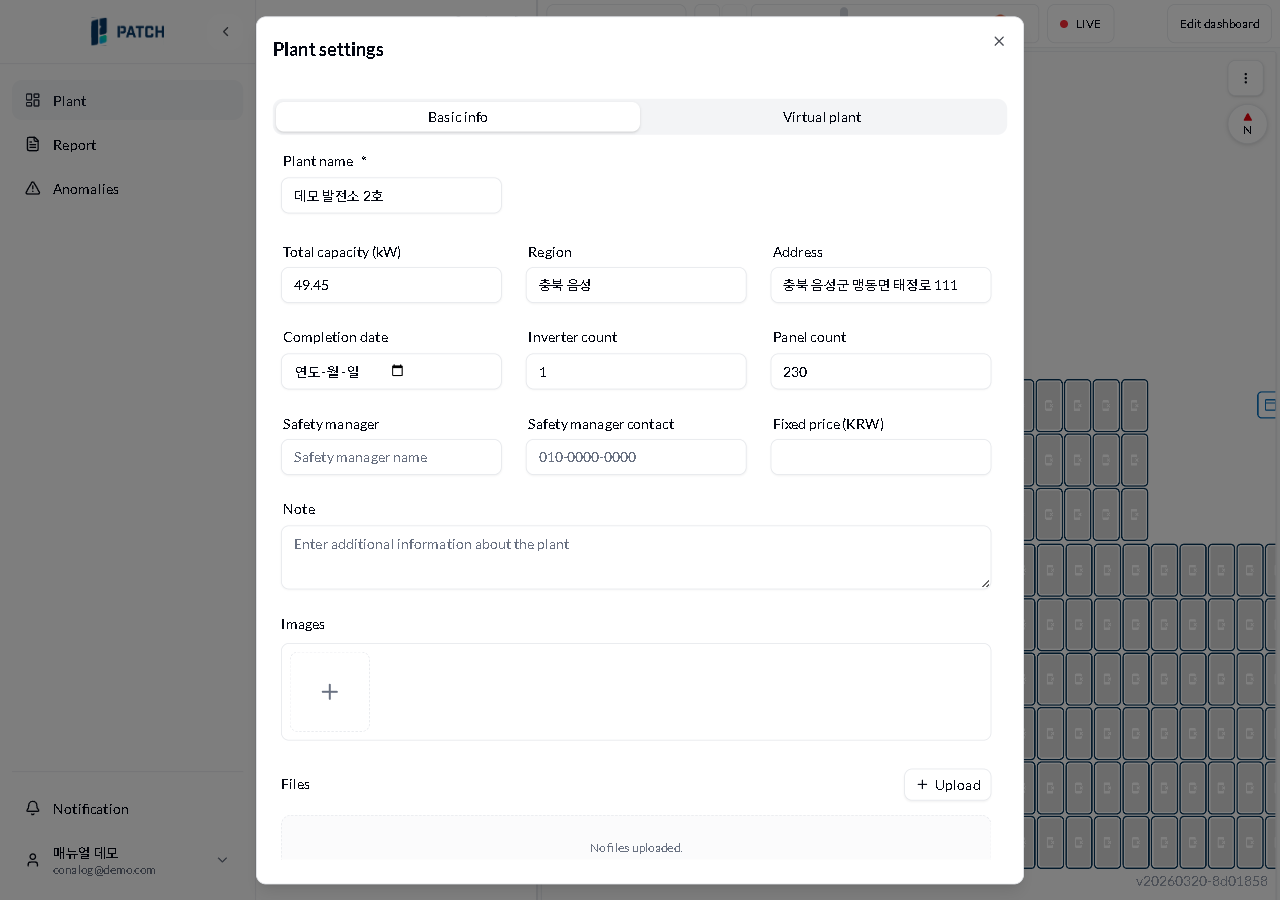
On the Basic Info tab, edit the plant name (required), capacity, region, address, inverter/panel counts, notes, and other fields, then save.
Click the Report tab next to Filter to see reports for this plant. Click the ⓘ icon next to Inverter/Panel to view model information in a popup.
Expected result
The information panel gives you an immediate overview of the plant basics, and changes saved in the settings dialog take effect right away.
If it does not work
If you cannot see the settings button, look for the gear icon next to the info icon in the header area.
If saving fails, make sure the plant name (required) is not empty.
Step-by-step screenshots
Follow the red-numbered hotspots in the images below alongside the steps above.
1. Click a plant row in the plant list. The detail screen opens, and the information panel on the left shows the organization, address, total capacity, inverter/panel counts, and notes.
1
발전소 상세 정보 패널
Plant detail screen — left info panel showing organization, address, capacity, inverters, panels, and notes, with settings button in header
Info panel — organization name, address, total capacity, inverter/panel count, and notes displayed
2. Click the gear icon in the header. The plant settings dialog opens.
2
발전소 상세 정보 패널
Plant detail screen — left info panel showing organization, address, capacity, inverters, panels, and notes, with settings button in header
Header button area — Info, Settings, Notification icons
2
발전소 설정 다이얼로그
Plant settings dialog — Basic Info tab with edit form showing plant name, capacity, address, etc.
Tab bar — Basic Info (current) and Virtual Plant tabs
3. On the Basic Info tab, edit the plant name (required), capacity, region, address, inverter/panel counts, notes, and other fields, then save.
3
발전소 설정 다이얼로그
Plant settings dialog — Basic Info tab with edit form showing plant name, capacity, address, etc.
Basic info edit form — plant name (required), capacity, region, address, inverter/panel count, notes, etc.
4. Click the Report tab next to Filter to see reports for this plant. Click the ⓘ icon next to Inverter/Panel to view model information in a popup.